



Quick answer: You can add a star rating field to an Elementor form by registering a custom field type with the elementor_pro/forms/fields/register hook. One small plugin adds “Star Rating” to the form’s field type dropdown, with no third-party form plugin and no monthly fee.
Key takeaway: This needs Elementor Pro, because the Form widget and the hook are Pro features. The plugin I built for a client project is free on GitHub.
I used this exact method on a client’s review landing page. The form needed a 5-star rating next to name, email and treatment details, and Elementor had no field for it. You can see the finished project in the Elementor star rating field case study. I’ve put that exact plugin on GitHub for free, and below I walk through how it works so you can install it or build your own.
Does Elementor Have a Rating Field for Forms?
No. The Elementor Pro Form widget ships with 20 field types, including text, email, number, date, file upload and checkbox, but no rating field. You can check the full list in Elementor’s form fields documentation.
Elementor does have a Star Rating widget, but that one only displays a fixed rating on a page. It can’t sit inside a form or collect a visitor’s score. People have asked for a form rating field on Elementor’s GitHub for years.
Plugin or Custom Code?
You have two ways to get the field.
| Rating Field Plugin | Custom Field (This Guide) | |
|---|---|---|
| Setup time | A few minutes | A few minutes with the free GitHub plugin |
| Cost | Often a paid add-on | Free |
| Code loaded | The whole plugin, even the parts you don’t use | One PHP class plus a small CSS and JS file, only on pages with the form |
| Updates | Depends on the plugin author | You control it |
| Best for | Sites that need many extra field types | Sites that need one rating field |
For my client, the plugin I found was a paid add-on with far more features than one rating field needed. Every extra plugin is another thing to update, another thing that can break, and more code on the page. We run into this a lot in WordPress maintenance work, where old “quick fix” plugins slow a site down a year later. So I built the field myself.
What You Need Before You Start
- Elementor Pro, active on the site
- Access to upload a plugin from the WordPress dashboard, or FTP, cPanel File Manager or SSH
- A staging or test site, so nothing breaks on the live form
- Basic PHP reading skills if you plan to change the code. You don’t need to write PHP from scratch
If your host doesn’t give you a staging copy, our managed WordPress hosting includes one.
Step 1: Read Elementor’s Official Example
Elementor documents how to add new form fields in its developer docs. Start with these three pages:
- Add New Field: how the
elementor_pro/forms/fields/registerhook works - Field Structure: the methods every field class needs (
get_type,get_name,render,validation) - Simple Example: a complete working plugin that adds a “Local Tel” field
The Simple Example is the one I built on. It’s a two-file plugin: a main file that registers the field, and a class file that renders and validates it. My rating field follows the same structure, with the phone input swapped for five stars.
Step 2: Download the Plugin from GitHub
I’ve published the exact plugin from my client project, with the client’s name removed, as a free download: Elementor Form Star Rating Field on GitHub. Grab the zip from the Releases page.
It has four files:
elementor-form-star-rating-field/
├─ assets/
│  ├─ css/rating-field.css
│  └─ js/rating-field.js
├─ form-fields/
│  └─ star-rating.php
└─ elementor-form-star-rating-field.php
It’s a plugin, not a snippet for your theme’s functions.php, so the field keeps working if you change or update your theme. If you’d rather build it yourself, the next two steps show how each part works.
Step 3: Register the Field and Its Files
The main file, elementor-form-star-rating-field.php, does three jobs:
// 1. Register the CSS and JS, but don't load them yet.
function efsrf_register_assets() {
	wp_register_script(
		'elementor-form-star-rating-field',
		EFSRF_URL . 'assets/js/rating-field.js',
		[],
		EFSRF_VERSION,
		true
	);

	wp_register_style(
		'elementor-form-star-rating-field',
		EFSRF_URL . 'assets/css/rating-field.css',
		[],
		EFSRF_VERSION
	);
}
add_action( 'wp_enqueue_scripts', 'efsrf_register_assets' );

// 2. Add the Star Rating field to the Elementor Pro Form widget.
function efsrf_register_star_rating_field( $form_fields_registrar ) {
	require_once __DIR__ . '/form-fields/star-rating.php';
	$form_fields_registrar->register( new \Elementor_Star_Rating_Field() );
}
add_action( 'elementor_pro/forms/fields/register', 'efsrf_register_star_rating_field' );

// 3. Show an admin notice if Elementor Pro isn't active.
add_action( 'admin_init', function () {
	if ( ! class_exists( '\ElementorPro\Modules\Forms\Fields\Field_Base' ) ) {
		add_action( 'admin_notices', function () {
			echo '<div class="notice notice-warning"><p>' .
				esc_html__( 'Star Rating Field: Elementor Pro is required for the Star Rating form field to appear.', 'elementor-form-star-rating-field' ) .
				'</p></div>';
		} );
	}
} );
The CSS and JS are only registered here, never loaded site-wide. Elementor loads them later, and only on pages where a form actually uses this field.
Step 4: Build the Star Rating Field Class
form-fields/star-rating.php holds the field itself. It extends Elementor’s Field_Base class, just like the Local Tel field in Elementor’s example. These are the parts that matter:
class Elementor_Star_Rating_Field extends \ElementorPro\Modules\Forms\Fields\Field_Base {

	public function get_type(): string {
		return 'star-rating';
	}

	public function get_name(): string {
		return esc_html__( 'Star Rating', 'elementor-form-star-rating-field' );
	}

	// Load the CSS and JS only on pages that use this field.
	public function get_script_depends(): array {
		return [ 'elementor-form-star-rating-field' ];
	}

	public function get_style_depends(): array {
		return [ 'elementor-form-star-rating-field' ];
	}

	// Only the five real ratings are accepted.
	public function validation( $field, $record, $ajax_handler ): void {
		$value = isset( $field['value'] ) ? trim( (string) $field['value'] ) : '';

		if ( '' === $value ) {
			if ( ! empty( $field['required'] ) ) {
				$ajax_handler->add_error(
					$field['id'],
					esc_html( sprintf( __( '%s is required.', 'elementor-form-star-rating-field' ), $field['field_label'] ) )
				);
			}
			return;
		}

		$allowed_labels = [ 'Very Poor 1/5', 'Poor 2/5', 'Average 3/5', 'Good 4/5', 'Excellent 5/5' ];

		if ( ! in_array( $value, $allowed_labels, true ) ) {
			$ajax_handler->add_error(
				$field['id'],
				esc_html( sprintf( __( '%s must be a valid rating.', 'elementor-form-star-rating-field' ), $field['field_label'] ) )
			);
		}
	}

	// render() and the editor preview script are in the full file on GitHub.
}
What Each Part Does
| Part | Job |
|---|---|
get_type() |
The field’s ID in code: star-rating |
get_name() |
The label in the field type dropdown: “Star Rating” |
get_script_depends() / get_style_depends() |
Tell Elementor to load the field’s JS and CSS only where the field is used |
render() |
Prints five star blocks, a live label, and a hidden input that holds the value |
validation() |
Rejects anything except the five real ratings, so nobody can submit a fake score |
content_template_script() |
Shows the stars inside the Elementor editor, not just on the live page |
rating-field.js |
Colors the stars on hover and click, and writes the chosen rating into the hidden input |
Change the Colors and Labels
The color and label for each score live at the top of assets/js/rating-field.js:
var LEVELS = {
	1: { color: '#FF3722', label: 'Very Poor 1/5' },
	2: { color: '#FF8622', label: 'Poor 2/5' },
	3: { color: '#FFCE00', label: 'Average 3/5' },
	4: { color: '#73CF11', label: 'Good 4/5' },
	5: { color: '#00B67A', label: 'Excellent 5/5' }
};
The form saves the label, like “Excellent 5/5”, so the rating reads clearly in your email notifications. If you change a label here, change it in $allowed_labels in star-rating.php too, or the form will reject it.
Step 5: Install and Test the Field
- Get the zip. Download it from the GitHub Releases page, or zip your own folder if you built it yourself.
- Upload it to your staging site. Go to Plugins > Add New > Upload Plugin, choose the zip and click Activate.
- Add the field to a form. Edit a page with Elementor, open your Form widget, click Add Item and pick Star Rating from the Type dropdown. Give it a label like “Your rating” and tick Required if you need it.
- Send a test submission. Fill in the form on the frontend, click a star and submit.
- Check where the rating lands. Open your notification email and Elementor > Submissions. You should see the rating as text, like “Good 4/5”, next to the field label.
- Try to break it. Submit without a rating while the field is required. You should get an error like “Your rating is required.”
- Move it to the live site. Once it works on staging, upload the same zip to the live site.
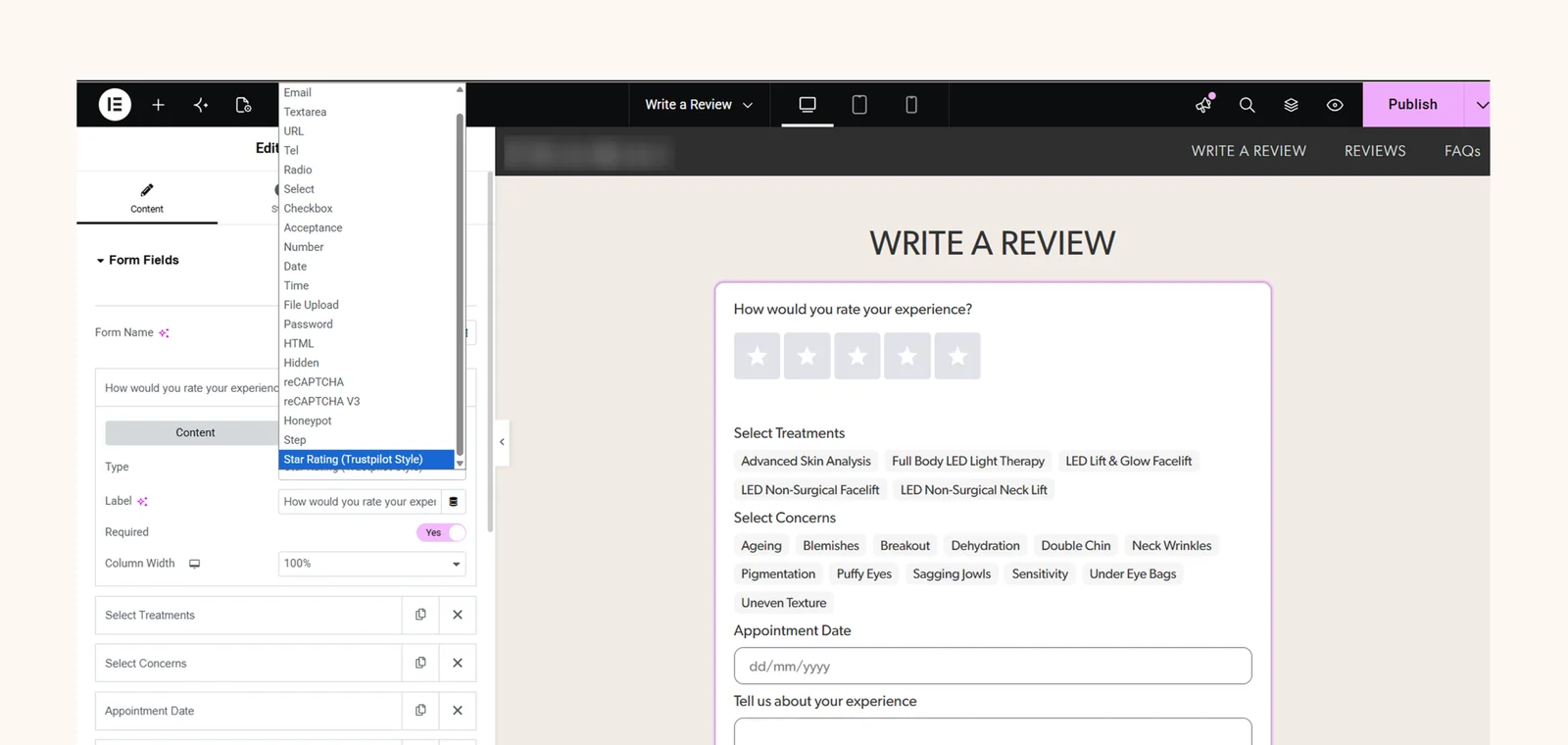
If the field doesn’t show up in the dropdown, check that Elementor Pro is active. The plugin also shows an admin notice when Elementor Pro is missing.
How I Used This on a Client’s Review Page
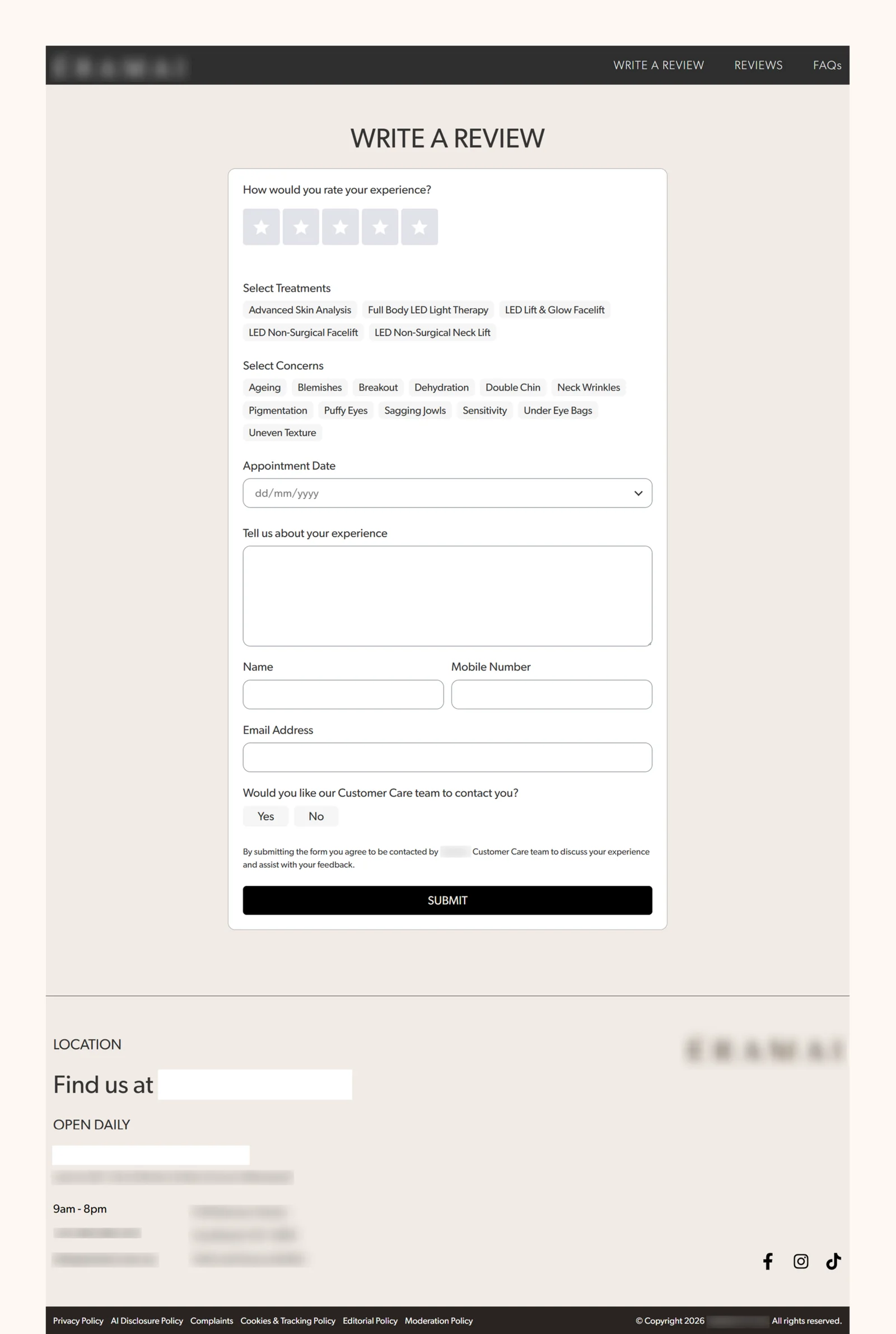
This project came to me through Dov Schwartz, for one of his clients. They wanted a landing page with an about section, a block of published reviews, and a form where patients could leave their own review. The form needed name, email, the treatments they had, their concerns, an appointment date, and a 5-star rating.
The page itself was quick to build in Elementor. The rating was the hold-up, because the Form widget had no field for it.
Here’s how I handled it:
- Skipped the paid plugin. The one plugin I found that could add the field was a paid add-on with far more than this form needed.
- Started from Elementor’s own example. I took the Simple Example from Elementor’s docs and gave it to an AI assistant along with exactly what the field had to do: 5 stars, colors that change with the score, and a clear saved value.
- Reviewed and tested every line. I read through the generated code, then ran it on my own development site first and checked for PHP errors and the saved values before it went near the client’s site.
- Made the rating easy to read. I set the field to save a readable label like “Excellent 5/5” instead of a bare number, so the client can read each rating straight from the email.
The landing page, the custom field, testing and deployment took three days in total. The field itself took under two hours, and most of that was testing. It’s still live on the client’s site.
You can see the finished page, the form and the reviews section in the full case study.
When a Custom Field Makes Sense (and When It Doesn’t)
Build or install the custom field if:
- You need one rating field, not a whole new form system
- You can upload a plugin, or have someone who can
- Page speed or plugin count is already a concern on the site
Use a form plugin instead if you need multi-step logic, payment fields, or dozens of conditional rules. At that size, hand-built code saves you little and leaves you maintaining all of it.
This is the same plugin-versus-code call we make on every WordPress website design project. Fewer plugins usually means a faster site that’s cheaper to run, which is a big part of what a small business website really costs.
Frequently Asked Questions
No. The Form widget and the elementor_pro/forms/fields/register hook are part of Elementor Pro. On free Elementor there’s no form to add the field to.
In your form’s notification email and under Elementor > Submissions in the WordPress dashboard. The rating is saved as a readable label, like “Excellent 5/5”, so you don’t have to decode numbers.
Yes. Labels and colors are in LEVELS in rating-field.js, and the accepted values are in $allowed_labels in star-rating.php. Keep the two lists matching. For a 10-point scale, also change the star loop in render() and in the editor preview script.
No, not in any way you’d notice. The plugin adds one PHP class, a CSS file of about 1.5 KB and a JS file of about 3.5 KB. Elementor loads the CSS and JS only on pages where a form uses the field.
Yes, if you add it as a site-specific plugin, test it on staging first, and keep a backup. The validation in this plugin also accepts only the five real ratings, so nobody can submit a fake score.
This plugin uses Elementor’s documented developer API, the same one in their official examples. It should keep working through normal updates, but test your form after major Elementor Pro releases.
Want This Field Built for You?
The plugin is free on GitHub. If you’d rather not touch code at all, we can install and set up the star rating field on your site, or build any other field Elementor is missing. No extra plugin, no bloat.
Get in Touch